
Every WhatsApp contact, checked against F11
F1rst in Service advisors share hotel, cruise, tour and airline contacts and partners in WhatsApp every day. Chipp built Contact Check, a web app that checks each one against F11, their system of record, so the team only keys in what F11 does not already have.
- Every contact and partner is checked against F11. The daily brief shows the answer on every row.
- Only new records reach a person. Records F11 already has need no action. The rest land in a review queue.
- F11 is never written to. Contact Check is read-only. People key in new records themselves.
From request to live contacts, Oct 1 to Oct 7, 2026
F11 contacts every new contact is checked against
Partners checked in one call on the first partner run, Oct 22
- Chipp Alchemist
- Chipp agents
- Azure SQL
- Microsoft Entra ID
- SharePoint
The challenge
New contacts and partners arrive every day across F1S's WhatsApp communities: Global, Europe, Mexico and Entertainment. A Chipp agent, the F1S WhatsApp Monitor, already caught them in the team's 5am brief, but every row read "F11: Not checked". To know whether a record was new, someone had to look it up in F11 by hand. The answer had to fit the brief the team already reads, leave F11 alone, and never let a failed lookup pass for "not in F11".
What the solution had to do
- Answer one question per record
Is this contact or partner already in F11? Yes means no action. No means it goes to review.
- Leave F11 alone
F11 stays the system of record. People key in new records themselves.
- Never lose a lead
A failed lookup must never pass for “not in F11”, and every skipped record needs a reason.
- Fit the existing routine
Work inside the 5am brief the team already reads, with no new steps for advisors.
What we built
Contact Check is a web app built on Chipp Alchemist. The WhatsApp Monitor sends it every contact and partner it catches in the Global, Europe and Mexico channels, and the brief prints the answer on each row.
- 1CaughtThe F1S WhatsApp Monitor
A Chipp agent sends every contact and partner it catches while building the 5am brief.
- 2CheckedContact Check
It looks each one up in F11 and sends the answer back in seconds, so the brief shows it on every row.
- 3ReviewedThe review queue
Only records F11 doesn’t have land in the review queue, and the partnerships inbox gets one email per batch.
How a record flows
- 01Advisors share contacts and partners in the Global, Europe and Mexico channels
- 02The WhatsApp Monitor builds the 5am brief, sends each contact to Contact Check, and sends all of the brief’s partners in one call. Entertainment stays out for now
- 03Contact Check saves every record, merges repeats, and looks each one up in F11, read-only
- 04Records F11 has show in the brief. Records it doesn’t land in the review queue and in one email per batch to the partnerships inbox
Key mechanics
- Read-only by design
Contact Check reads F11 and never writes to it. F11 stays the system of record.
- Fails safe
If F11 can’t answer, the record shows “check failed” and is retried every 2 minutes. It is never counted as new.
- One source for partner answers
Partner checks ask F1RST Key, the F1S app that copies the Partnerships workbooks from SharePoint. Both apps give the same answer.
- Answers back in the brief
Rows read “In F11” or “Not in F11 · sent for review”. Partners F11 has move to one “Already in F11” line, with their label.
- Phone numbers that line up
Country codes and punctuation are ignored, and both the main phone and mobile columns are searched.
- Nothing silently dropped
A token-protected webhook saves every record before it is checked. Ignoring one needs a reason.
- Review you can undo
A reviewer keys the record into F11, then marks it “Entered into F11”, or “Ignore” with a reason. Either can be undone.
How a record is matched
- Contacts
- Phone or mobile on the last 10 digits, then email, then exact name, through a Microsoft Entra app login.
- Partners
- Exact name, against F1S’s Partnerships workbooks and F11’s partner pages, through F1RST Key.
- Not in F11
- Lands in the review queue, and in one email per batch to the partnerships inbox.
Inside the app
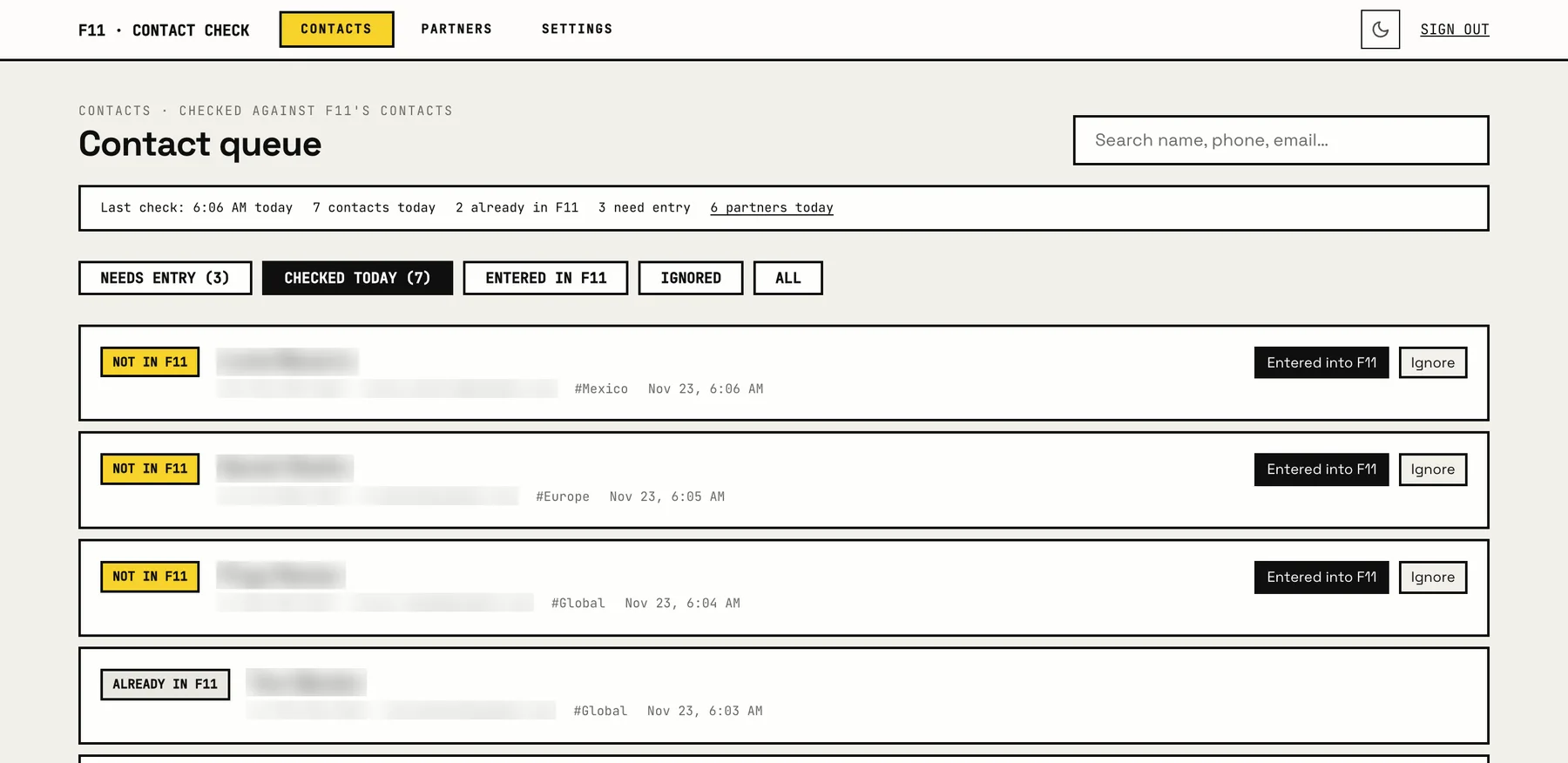
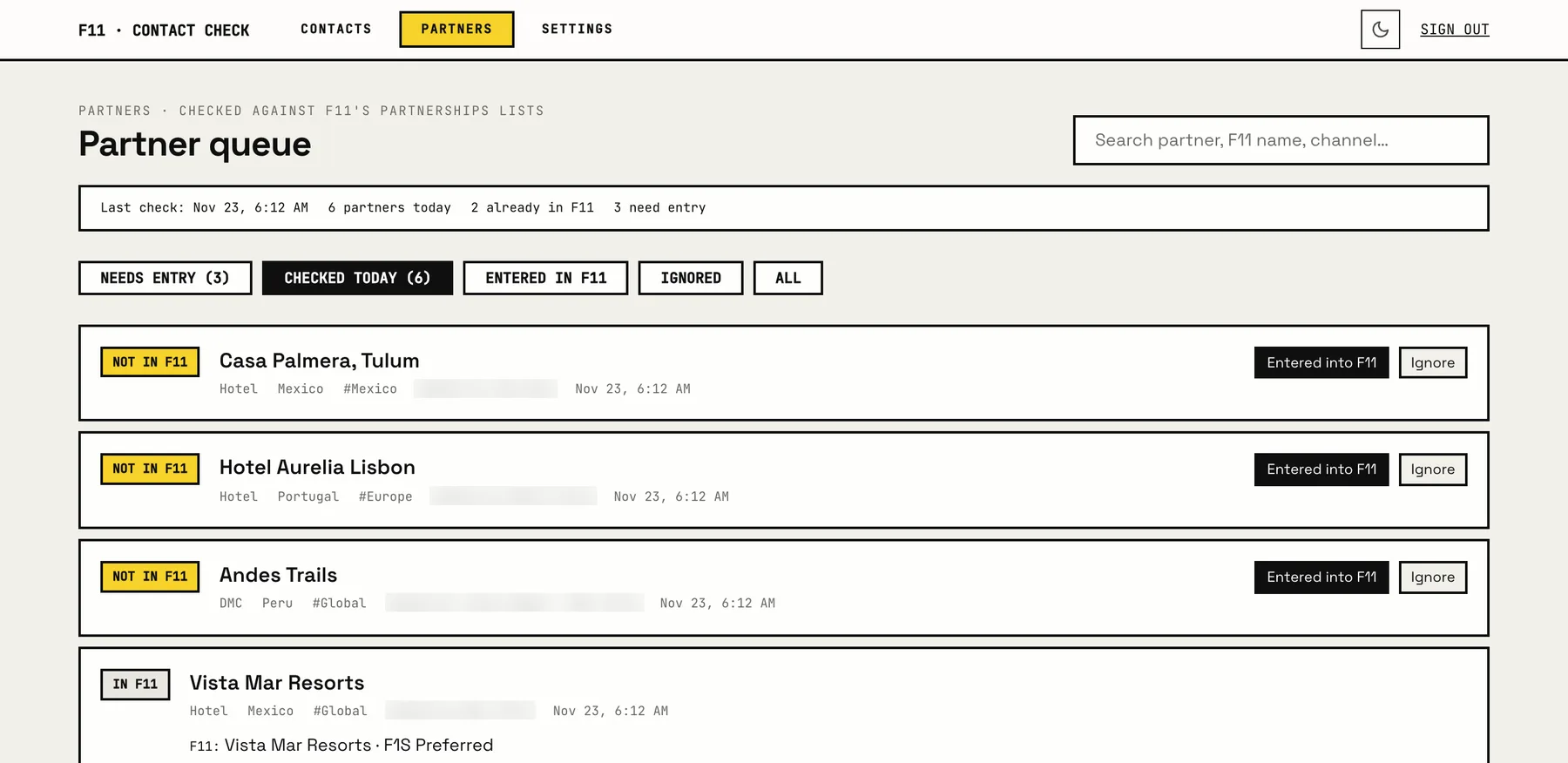
Screens show sample data. Names, phone numbers and emails are blurred.
Delivery
- Oct 1 to 7Phase 1Contacts live
- App built on Chipp Alchemist in two days
- Secure webhook, tested end to end on a copy of the agent
- Microsoft Entra login set up with F1S IT
- Live agent published, first contacts matched on Oct 7
- Oct 8 to 16Phase 2Feedback round
- Emails to the partnerships inbox from Oct 9, ahead of F1S’s SUMM1T event
- Every check visible in the app
- Mobile access fixed
- Dates, who decided and undo, from the Oct 15 review with F1S
- Oct 22Phase 3Partners live
- Partner checks through F1RST Key
- The brief shows the F11 answer for every contact and partner
- Partner queue with labels and lists
- Contacts and Partners tabs in the app
Hurdles cleared
Chipp moved its platform runtime to Deno 2.9.7, where the encrypted connection completes.
F1S IT created a dedicated, read-only Microsoft Entra app login, and opened access for Chipp’s fixed address only.
We chose the view that covers every contact (2,170 of 2,170) and built a health page that proves it.
Matching searches both, so a contact stored only under mobile isn’t flagged as new.
All of a brief’s partners go to Contact Check in one call.
Partner checks count both, so a partner on a page alone isn’t flagged as new.
Every agent change went in small steps, each checked before and after, with a restore point, and went live only after a real test.
Results
Contacts and partners are live. Every row in the daily brief now shows whether F11 already has it.
- First live run, October 7
Two contacts from the Mexico channel arrived from the WhatsApp Monitor. Contact Check found both in F11 within a minute, so neither needed manual entry.
- First partner run, October 22
14 partners in one call. 6 were already on F11, so only 8 went to the review queue and the partnerships inbox.
Before and after
Only new ones need you.

What's next
- 01Different spellings
Suggest the likely F11 name when a partner is spelled another way, for a reviewer to confirm.
- 02Flag changed details
Spot contacts F11 already has whose phone number or email has changed.
- 03Preferred partners
Use F11’s preferred lists to spot advisors booking around a preferred partner, once F1S sets the rule.
- 04Entertainment channel
Decide whether its contacts and partners join the checks.
Want every lead checked before it reaches your team?
Book 20 minutes. We build your first version with you, live, on your data.