# Getting Started with Custom Actions
Create your first custom action in minutes
Custom actions require a Pro plan or higher.
Upgrade to Pro →
## Create Your First Action
### 1. Open Custom Actions
Navigate to [app.chipp.ai](https://app.chipp.ai) → Your App → Build → Capabilities → Add Custom Action
 ### 2. Basic Configuration
Fill in the basic fields:
- **Title**: `Search Users`
- **Description**: `Search for users in the database by name or email`
- **Method**: `GET`
- **URL**: `https://api.example.com/users`
### 3. Add Parameters
Click **Parameters** tab and add a query parameter:
### 2. Basic Configuration
Fill in the basic fields:
- **Title**: `Search Users`
- **Description**: `Search for users in the database by name or email`
- **Method**: `GET`
- **URL**: `https://api.example.com/users`
### 3. Add Parameters
Click **Parameters** tab and add a query parameter:
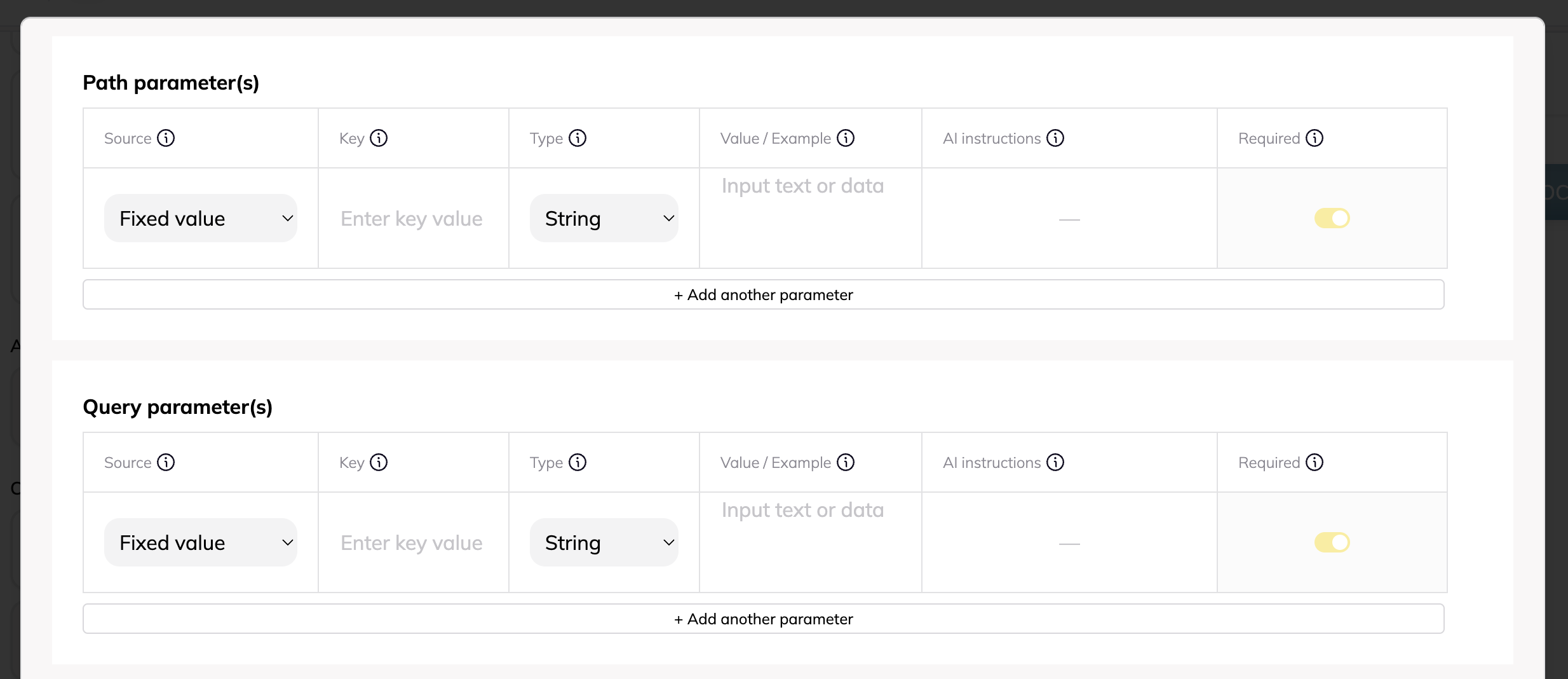 - **Source**: Let AI generate
- **Key**: `query`
- **Type**: String
- **Example**: `john.doe@example.com`
- **AI Instructions**: `Search term based on user's request`
- **Required**: ✓
### 4. Test Your Action
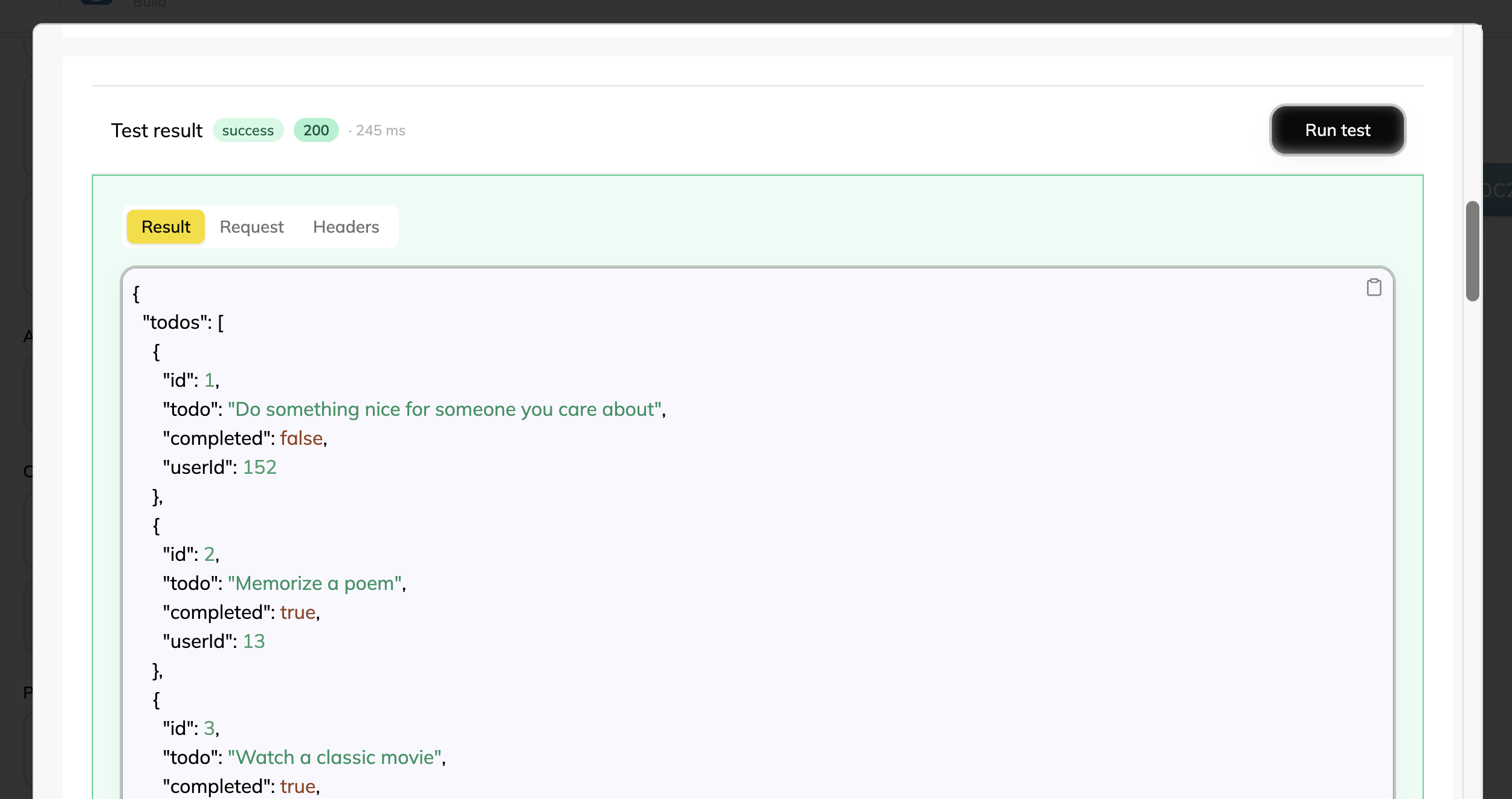
Use the built-in tester to verify your configuration:
- **Source**: Let AI generate
- **Key**: `query`
- **Type**: String
- **Example**: `john.doe@example.com`
- **AI Instructions**: `Search term based on user's request`
- **Required**: ✓
### 4. Test Your Action
Use the built-in tester to verify your configuration:
 ### 5. Save and Use
Click **Add Action** to save. Your AI can now search users when asked.
## Import from cURL
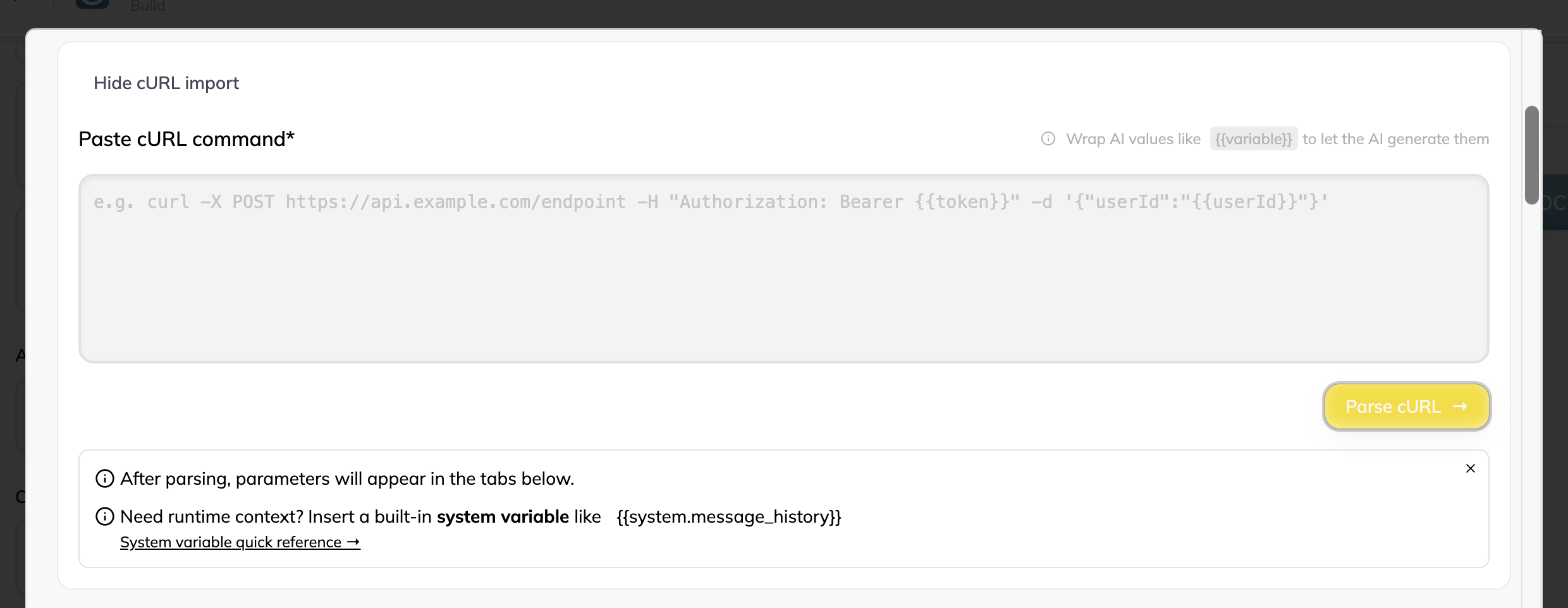
Quickly create actions by importing cURL commands:
### 5. Save and Use
Click **Add Action** to save. Your AI can now search users when asked.
## Import from cURL
Quickly create actions by importing cURL commands:
 ### 1. Paste cURL Command
For example:
```bash
curl -X POST https://api.example.com/messages \
-H "Authorization: Bearer {{var.API_KEY}}" \
-H "Content-Type: application/json" \
-d '{
"to": "{{email}}",
"subject": "{{subject}}",
"body": "{{message}}"
}'
```
### 2. Parse and Configure
Click **Parse cURL** to auto-populate:
- Method: POST
- Headers: Authorization, Content-Type
- Body parameters with AI placeholders
### 3. Configure Placeholders
For each `{{placeholder}}`:
- Add example values
- Write AI instructions
- Mark as required/optional
## Using Variables
### Application Variables
Define reusable values in the **Variables** tab:
### 1. Paste cURL Command
For example:
```bash
curl -X POST https://api.example.com/messages \
-H "Authorization: Bearer {{var.API_KEY}}" \
-H "Content-Type: application/json" \
-d '{
"to": "{{email}}",
"subject": "{{subject}}",
"body": "{{message}}"
}'
```
### 2. Parse and Configure
Click **Parse cURL** to auto-populate:
- Method: POST
- Headers: Authorization, Content-Type
- Body parameters with AI placeholders
### 3. Configure Placeholders
For each `{{placeholder}}`:
- Add example values
- Write AI instructions
- Mark as required/optional
## Using Variables
### Application Variables
Define reusable values in the **Variables** tab:
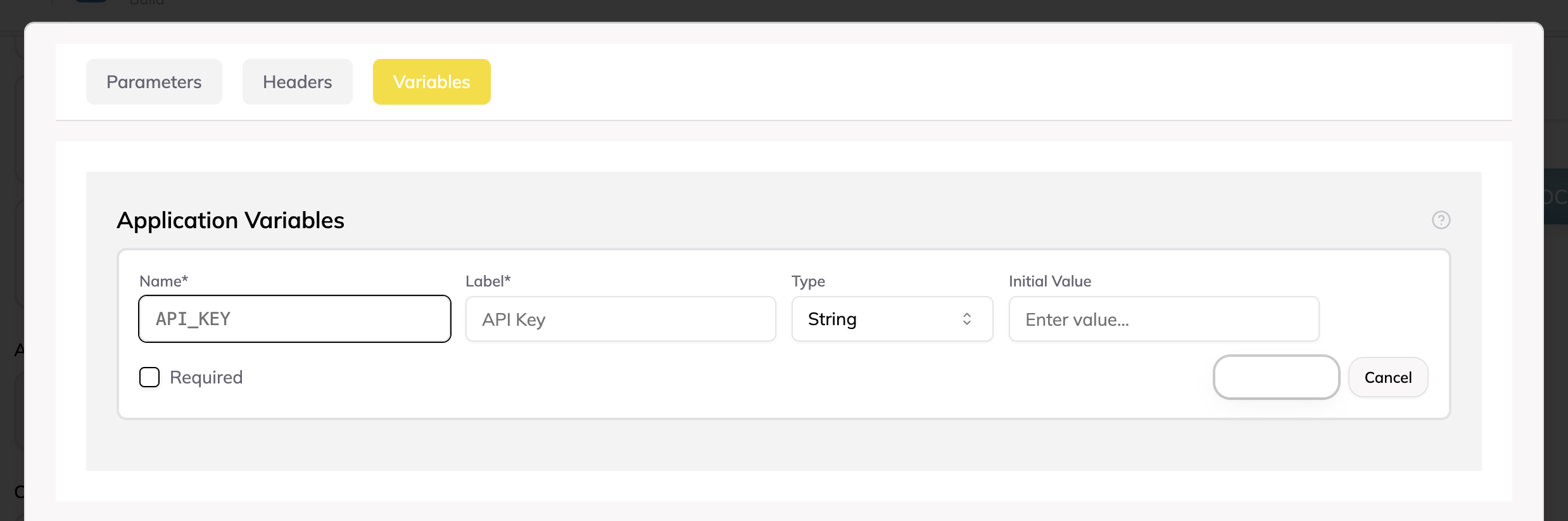 **Define once in Variables tab:**
- `API_KEY` = `sk-abc123...`
- `BASE_URL` = `https://api.example.com`
**Use in any action:**
- URL: `{{var.BASE_URL}}/users`
- Header: `Authorization: Bearer {{var.API_KEY}}`
### System Variables
System variables provide runtime context about the current user and conversation. They're automatically available in all actions:
**{{system.message_history}}**
- Returns the full conversation as an array
- Format: OpenAI Chat Completions API format
- Use case: Send conversation context to analysis APIs
- Example: `[{"role": "user", "content": "Hello"}, {"role": "assistant", "content": "Hi there"}]`
**{{system.user_id}}**
- Returns the unique ID of the current user
- Format: String identifier
- Use case: Track actions by user, personalize responses
- Example: `"user_abc123"`
**{{system.timestamp}}**
- Returns the current Unix timestamp in seconds
- Format: String number
- Use case: Log when actions occur, time-based operations
- Example: `"1713552052"`
**Example usage in the cURL importer:**
```bash
curl -X POST https://api.example.com/analyze \
-H "Content-Type: application/json" \
-H "X-User-ID: {{system.user_id}}" \
-d '{
"timestamp": "{{system.timestamp}}",
"messages": {{system.message_history}}
}'
```
Note: `message_history` doesn't need quotes in the body because it's already a JSON array.
## Action Dependencies
**Define once in Variables tab:**
- `API_KEY` = `sk-abc123...`
- `BASE_URL` = `https://api.example.com`
**Use in any action:**
- URL: `{{var.BASE_URL}}/users`
- Header: `Authorization: Bearer {{var.API_KEY}}`
### System Variables
System variables provide runtime context about the current user and conversation. They're automatically available in all actions:
**{{system.message_history}}**
- Returns the full conversation as an array
- Format: OpenAI Chat Completions API format
- Use case: Send conversation context to analysis APIs
- Example: `[{"role": "user", "content": "Hello"}, {"role": "assistant", "content": "Hi there"}]`
**{{system.user_id}}**
- Returns the unique ID of the current user
- Format: String identifier
- Use case: Track actions by user, personalize responses
- Example: `"user_abc123"`
**{{system.timestamp}}**
- Returns the current Unix timestamp in seconds
- Format: String number
- Use case: Log when actions occur, time-based operations
- Example: `"1713552052"`
**Example usage in the cURL importer:**
```bash
curl -X POST https://api.example.com/analyze \
-H "Content-Type: application/json" \
-H "X-User-ID: {{system.user_id}}" \
-d '{
"timestamp": "{{system.timestamp}}",
"messages": {{system.message_history}}
}'
```
Note: `message_history` doesn't need quotes in the body because it's already a JSON array.
## Action Dependencies
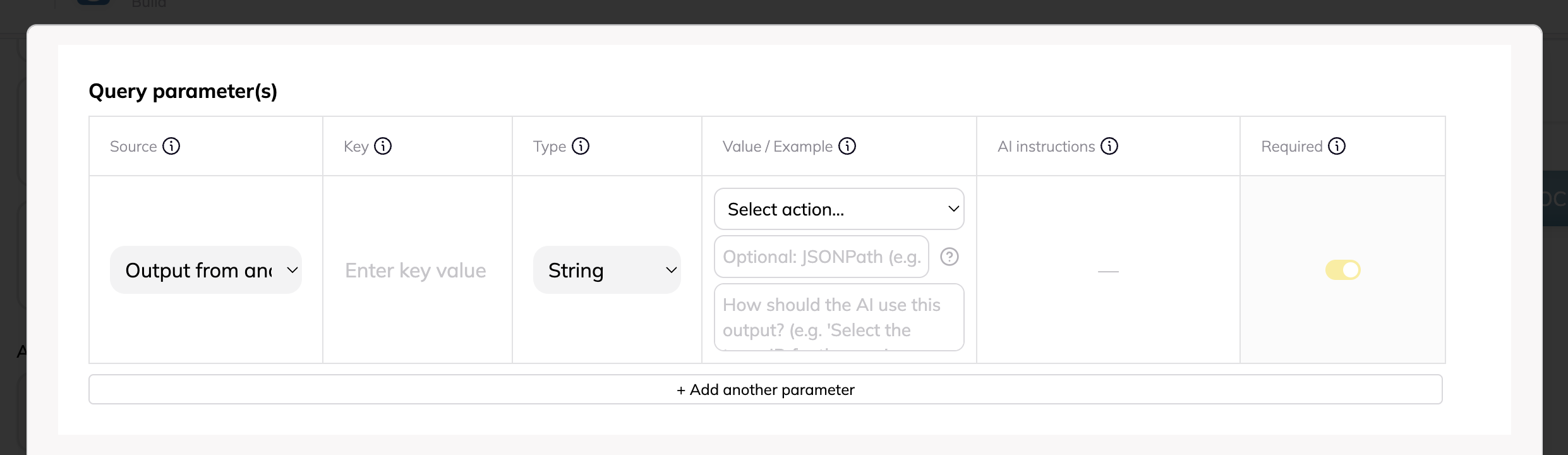 Action dependencies let you build multi-step workflows where one action's output becomes another action's input. The AI automatically executes actions in the right order.
**How it works:**
1. User asks: "What are my recent orders?"
2. AI recognizes it needs to:
- First: Call "Get Current User" to get the user ID
- Then: Call "Get User Orders" using that ID
3. Actions execute in sequence automatically
4. AI responds with the final result
### Example: Two-Step User Lookup
**Step 1 - Get User ID:**
- Name: `Get Current User`
- URL: `https://api.example.com/me`
- Returns: `{"data": {"id": "user_123", "name": "John"}}`
**Step 2 - Get User Details:**
- Name: `Get User Orders`
- URL: `https://api.example.com/users/{{userId}}/orders`
- Parameter configuration:
- Source: `Output from another Action`
- Action: `Get Current User`
- JSONPath: `$.data.id` (extracts "user_123" from Step 1)
**Result:** When the user asks about their orders, the AI:
1. Calls Get Current User → receives user_123
2. Calls Get User Orders with user_123 → receives order list
3. Responds: "You have 3 recent orders..."
**JSONPath Examples:**
- `$.id` - Top-level field
- `$.data.user.id` - Nested field
- `$.items[0].name` - First array item
- `$.teams[*].id` - All team IDs
## Verb Customization
Enhance user experience with status messages:
- **Present Tense**: "Searching customer database"
- **Past Tense**: "Searched customer database"
These display while your action executes.
## Best Practices
### 1. Clear Descriptions
Write descriptions that help the AI understand when to use the action.
### 2. Example Values
Provide realistic examples for AI-generated parameters.
### 3. Test Thoroughly
Use the tester with various inputs before saving.
### 4. Use Variables
Never hardcode sensitive values - use application variables.
### 5. Handle Errors
Ensure your API returns clear error messages.
## Next Steps
- [Configure Parameters →](/docs/custom-actions/parameters)
- [Manage Variables →](/docs/custom-actions/variables)
- [Test Your Actions →](/docs/custom-actions/testing)
- [View Examples →](/docs/custom-actions/examples)
Action dependencies let you build multi-step workflows where one action's output becomes another action's input. The AI automatically executes actions in the right order.
**How it works:**
1. User asks: "What are my recent orders?"
2. AI recognizes it needs to:
- First: Call "Get Current User" to get the user ID
- Then: Call "Get User Orders" using that ID
3. Actions execute in sequence automatically
4. AI responds with the final result
### Example: Two-Step User Lookup
**Step 1 - Get User ID:**
- Name: `Get Current User`
- URL: `https://api.example.com/me`
- Returns: `{"data": {"id": "user_123", "name": "John"}}`
**Step 2 - Get User Details:**
- Name: `Get User Orders`
- URL: `https://api.example.com/users/{{userId}}/orders`
- Parameter configuration:
- Source: `Output from another Action`
- Action: `Get Current User`
- JSONPath: `$.data.id` (extracts "user_123" from Step 1)
**Result:** When the user asks about their orders, the AI:
1. Calls Get Current User → receives user_123
2. Calls Get User Orders with user_123 → receives order list
3. Responds: "You have 3 recent orders..."
**JSONPath Examples:**
- `$.id` - Top-level field
- `$.data.user.id` - Nested field
- `$.items[0].name` - First array item
- `$.teams[*].id` - All team IDs
## Verb Customization
Enhance user experience with status messages:
- **Present Tense**: "Searching customer database"
- **Past Tense**: "Searched customer database"
These display while your action executes.
## Best Practices
### 1. Clear Descriptions
Write descriptions that help the AI understand when to use the action.
### 2. Example Values
Provide realistic examples for AI-generated parameters.
### 3. Test Thoroughly
Use the tester with various inputs before saving.
### 4. Use Variables
Never hardcode sensitive values - use application variables.
### 5. Handle Errors
Ensure your API returns clear error messages.
## Next Steps
- [Configure Parameters →](/docs/custom-actions/parameters)
- [Manage Variables →](/docs/custom-actions/variables)
- [Test Your Actions →](/docs/custom-actions/testing)
- [View Examples →](/docs/custom-actions/examples)